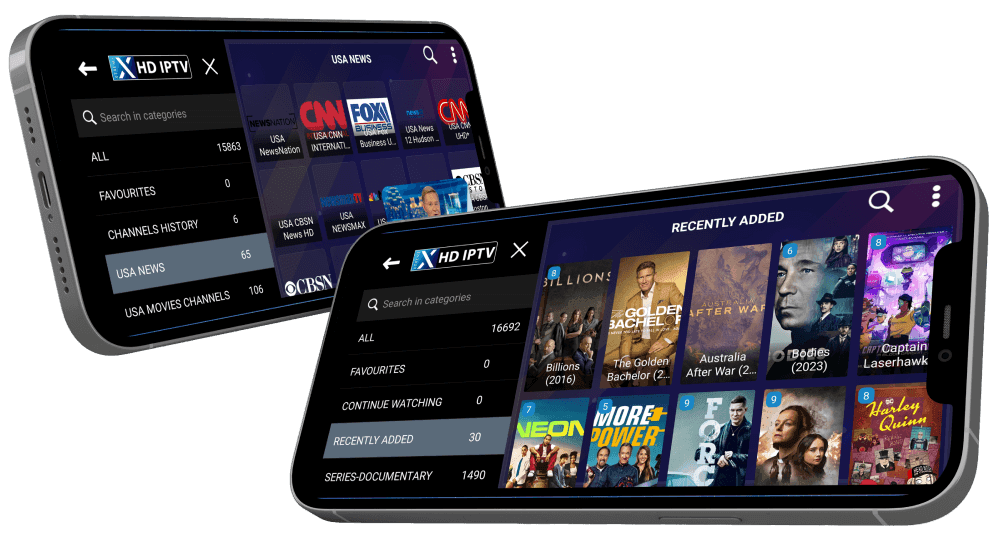
Every plan includes 20,000+ live channels and 80,000+ movies & series.Compare plans

Xtreme HD IPTV logo
Devices

Watch Xtreme HD IPTV on Your Devices

Xtreme HD IPTV works through a compatible IPTV player application. Find your device below to see how it connects and which guide to follow.

What Devices Support Xtreme HD IPTV?

Smart TVs and mobile phones (Android and iPhone) are the confirmed device types for Xtreme HD IPTV. Because you watch through a standard IPTV player app using Xtream Codes or M3U login details, the same apps also run on Amazon Fire TV / Firestick, Android TV boxes and Windows PCs. If your device can install a compatible player app, it can usually play Xtreme HD IPTV; message us on WhatsApp to confirm a specific model before you order.

Xtreme HD IPTV device compatibility overview
DeviceStatusPlayer appDetails
Smart TVConfirmed device typeAn IPTV player app available for your TV's platformSetup steps
Android & iPhoneConfirmed device typeIPTV Smarters Pro, GSE Smart IPTV or another M3U / Xtream Codes playerSetup steps
Amazon Fire TV / FirestickVia compatible player appIPTV Smarters Pro or TiviMate (often sideloaded with Downloader)Setup steps
Android TV & TV BoxesVia compatible player appTiviMate, IPTV Smarters ProSetup steps
Windows PCVia compatible player appVLC (M3U link) or a dedicated Windows IPTV playerSetup steps

Xtreme HD IPTV on Smart TV

Confirmed device type

Does it work on Smart TV?

Yes. Smart TVs are a confirmed device type for Xtreme HD IPTV. You watch through an IPTV player app installed on the TV, so the exact app depends on your TV's operating system (for example Tizen on Samsung).

Which player app to use

An IPTV player app available for your TV's platform

Basic setup

  1. Check your TV's app store for a compatible IPTV player app.
  2. Install the app and open its add-playlist or login screen.
  3. Enter the Xtreme HD IPTV login details you receive after ordering.
  4. Wait for channels and the on-demand library to load, then start watching.
Xtreme HD IPTV on Android & iPhone

Confirmed device type

Does it work on Android & iPhone?

Yes. Mobile phones are a confirmed device type. Android and iOS both have IPTV player apps in their official app stores that accept Xtreme HD IPTV login details.

Which player app to use

IPTV Smarters Pro, GSE Smart IPTV or another M3U / Xtream Codes player

Basic setup

  1. Install a compatible IPTV player from Google Play or the App Store.
  2. Choose the Xtream Codes or M3U login option in the app.
  3. Enter your Xtreme HD IPTV login details.
  4. Browse live TV, movies and series from the app's menus.

Xtreme HD IPTV on Amazon Fire TV / Firestick

Via compatible player app

Does it work on Amazon Fire TV / Firestick?

Fire TV devices run Android-based apps, and the player apps covered on this site (such as IPTV Smarters Pro and TiviMate) are commonly installed on them. Some are listed in the Amazon Appstore; others need to be sideloaded.

Which player app to use

IPTV Smarters Pro or TiviMate (often sideloaded with Downloader)

Basic setup

  1. Install your chosen player from the Amazon Appstore, or sideload it with the Downloader app.
  2. Open the player and pick the Xtream Codes or M3U login option.
  3. Enter your Xtreme HD IPTV login details with the remote.
  4. Let the channel list load, then start streaming.

Xtreme HD IPTV on Android TV & TV Boxes

Via compatible player app

Does it work on Android TV & TV Boxes?

Android TV boxes and Android TV-based televisions run the same player apps as Android phones, including TiviMate, which is built specifically for Android TV.

Which player app to use

TiviMate, IPTV Smarters Pro

Basic setup

  1. Install a player app from Google Play on the box or TV.
  2. Add a playlist using the Xtream Codes or M3U option.
  3. Enter your Xtreme HD IPTV login details.
  4. Use the app's guide or category list to start watching.

Xtreme HD IPTV on Windows PC

Via compatible player app

Does it work on Windows PC?

On a Windows PC you can use VLC with an M3U link for a quick start, or install a dedicated IPTV player for a fuller interface with separate live TV and on-demand sections.

Which player app to use

VLC (M3U link) or a dedicated Windows IPTV player

Basic setup

  1. Decide between VLC (quick) or a dedicated IPTV player (fuller interface).
  2. For VLC, open your M3U link as a network stream.
  3. For a dedicated player, enter your Xtream Codes or M3U details.
  4. Pick a channel or title and start watching.

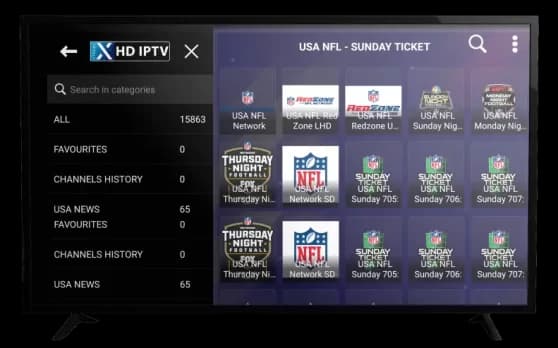
Screens shown above are from the Smarters Player Lite application, a third-party IPTV player used to access the service. Xtreme HD IPTV is not affiliated with, and does not claim ownership of, third-party player applications.

Ready to get set up?

Choose a plan on the pricing page, then contact us on WhatsApp to get your access details. Need to stream on several screens? See multi-device plans.